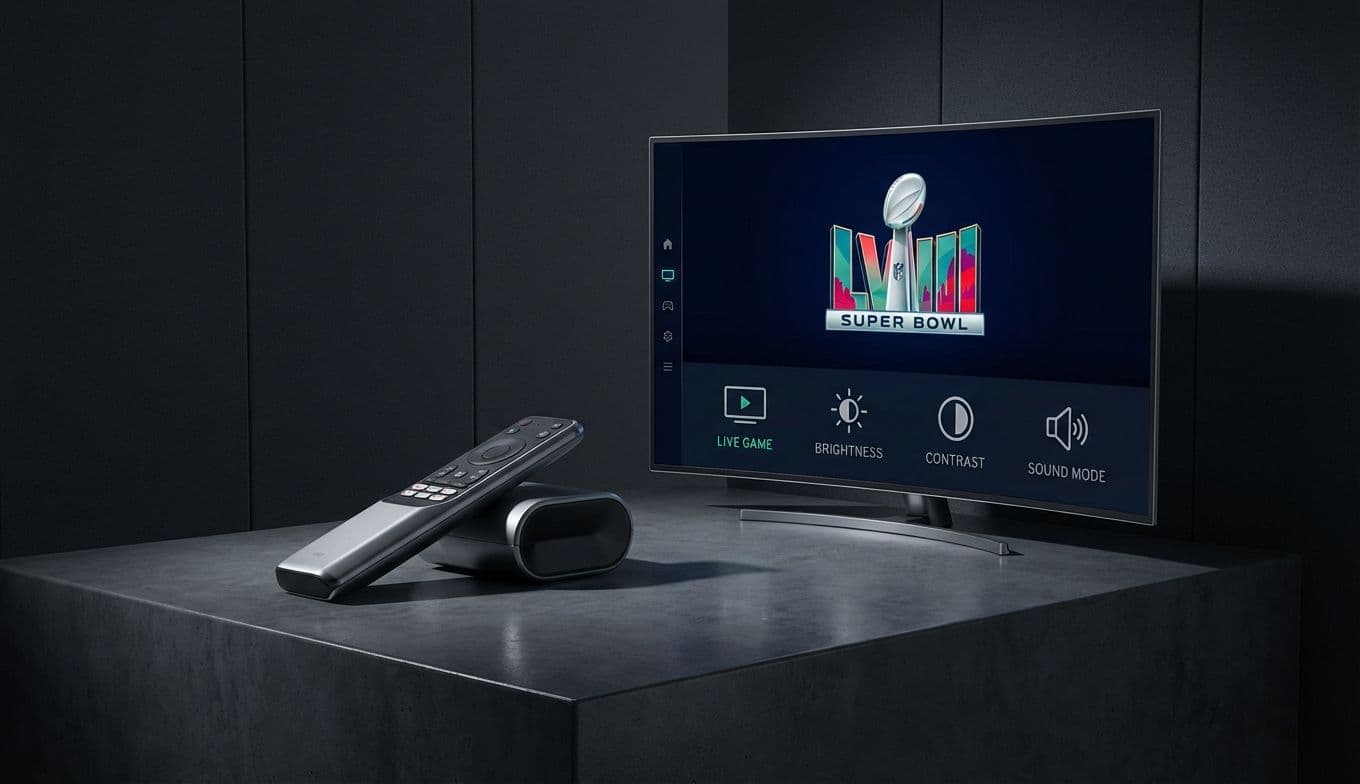
Super Bowl LXI TV Settings: Optimize Your Home Theater for 2026

Team Gimmie

Team Gimmie

2/2/2026

Super Bowl LXI TV Settings: Optimize Your Home Theater for 2026

The Ultimate Super Bowl LXI Tech Playbook: How to Optimize Your Setup for Game Day

Nothing kills the hype of a potential game-winning drive quite like a sudden motion blur, a tinny-sounding crowd, or the dreaded buffering wheel of death. We spend all week perfecting the buffalo chicken dip and ensuring the cooler is stocked, but the most important guest at the party is often the most overlooked: your home theater setup.

Whether you are hosting the whole neighborhood or just settling in for a quiet evening with the commercials and the halftime show, your TV requires more than just a power button to perform at its peak. This isn't just about having the biggest screen; it’s about making sure that screen actually shows you every blade of grass and every fingertip catch. Here is how to ensure your tech is championship-ready before kickoff.

The Visual Playbook: Calibrating for the Gridiron

Most people pull their TV out of the box, plug it in, and never touch the settings again. That is a mistake. Manufacturers typically ship TVs in Vivid or Dynamic mode. These settings are designed to grab your attention under the harsh fluorescent lights of a big-box retail store, but in your living room, they are a disaster. They over-saturate colors to a cartoonish degree and blow out the brightness, hiding the very details you want to see.

For the Super Bowl, your first move should be switching your picture mode to Cinema, Movie, or Filmmaker Mode. These presets offer a much more accurate color temperature and better contrast. If the room is bright because of afternoon sun, you can bump the backlight up manually, but keep the color profile natural.

However, there is one specific setting that usually gets a bad rap but is actually your friend on game day: Motion Smoothing. In the tech world, we often call this the Soap Opera Effect because it makes cinematic movies look like cheap daytime television. Usually, we tell you to turn it off immediately. But for sports, a low or moderate setting of motion interpolation can be a lifesaver. It helps reduce the blur of a ball flying across the screen or a wide receiver streaking down the sideline. Look for settings labeled Motionflow, TruMotion, or Action Smoothing and set them to a low or custom level. You want enough to keep the action crisp, but not so much that the players look like they are gliding on ice.

Pro Tip: Check the Broadcast Source

Not all 4K is created equal. Many Super Bowl broadcasts are actually produced in 1080p High Dynamic Range (HDR) and then upscaled to 4K by the network or your streaming device. If your TV’s built-in apps feel sluggish or the picture looks a bit soft, using a dedicated device like the Apple TV 4K or a high-end Roku can make a massive difference. These devices often have superior upscaling chips that can take a standard HD signal and make it look remarkably close to native 4K.

The Sound of the Stadium: Beyond Tiny Speakers

Modern TVs are thinner than ever, which is great for aesthetics but terrible for audio. There is simply no room inside those sleek frames for speakers that can produce the deep, guttural roar of a stadium or the crisp snap of a quarterback’s cadence. If you are still relying on built-in audio, you are only getting half the experience.

A dedicated soundbar is the easiest way to fix this. Look for a model with a dedicated center channel. In the chaos of a Super Bowl party, the center channel is responsible for the dialogue, meaning you will actually be able to hear the commentary over the sound of your friends arguing about a holding penalty. Brands like Sonos and Samsung have refined this to an art form, offering wireless subwoofers that provide that physical rumble every time there is a big hit on the field.

If you already have a surround sound system, take ten minutes to run your receiver’s auto-calibration tool. Moving a chair or adding a new rug can change the acoustics of your room. A quick refresh of your speaker levels ensures the crowd noise surrounds you without drowning out the play-by-play.

Streaming Without the Stutter

In 2026, more people than ever are ditching cable for streaming services. While this offers flexibility, it puts a massive strain on your home network. There is a specific heartbreak that occurs when the game cuts to a blurry, low-res mess right as the kicker lines up for a field goal.

To stream a 4K HDR broadcast reliably, you need a consistent downstream speed of at least 25 to 50 Mbps. Keep in mind, that is the speed reaching the device, not just the speed you pay your internet provider for. If your router is in the hallway and your TV is in the den, you might only be getting a fraction of that.

If possible, hardwire your TV or streaming box directly to your router with an Ethernet cable. It is the only way to 100 percent guarantee that a sudden spike in neighborhood Wi-Fi usage won't interfere with your game. If you must use Wi-Fi, ensure your streaming device is on the 5GHz or 6GHz band, which is less crowded than the standard 2.4GHz frequency. Run a quick speed test on your TV's browser or a laptop placed right next to it to see where you stand before the pre-game show starts.

The Game Day Host Gift Guide: Upgrades That Matter

If you are heading to a friend’s house for the game, don't just show up with a six-pack. If your host is a tech lover, these small upgrades make for the perfect game-day gifts that will actually get used long after the trophy is raised.

The Universal Controller: We have moved past the era of the Logitech Harmony. If your host is currently juggling four different remotes just to change the volume, get them a SofaBaton X1S or a BroadLink system. These are the new leaders in the space, offering sleek, unified control over the TV, soundbar, and streaming boxes without the legacy setup headaches of older universal remotes.

Snappy Streaming: If the host is still using a five-year-old smart TV interface that takes ten seconds just to load the app menu, a Roku Streaming Stick 4K or an Amazon Fire TV Stick 4K Max is a game-changer. They are affordable, support the latest 4K standards, and provide a much smoother user experience.

HDMI Cable Refresh: It sounds boring, but an old HDMI cable is often the hidden bottleneck in a 4K system. A certified High-Speed HDMI 2.1 cable ensures that HDR and high-frame-rate data can actually get from the box to the screen without dropouts. It’s the perfect technical stocking stuffer for the host who has everything else.

The Bottom Line

Preparing your home theater for the Super Bowl is about eliminating distractions. You want to be focused on the game, the commercials, and the company—not why the grass looks neon green or why the audio is out of sync. By taking thirty minutes to tweak your motion settings, verifying your internet bandwidth, and ensuring your sound is centered, you transform a standard Sunday afternoon into an immersive stadium experience.

Don't wait until the coin toss to find out your Wi-Fi can't handle the 4K stream. Run your drills now, so when the whistle blows, you can just sit back, grab a wing, and enjoy the show.

#Super Bowl LXI home theater#best picture settings for football#motion smoothing for sports#4K HDR streaming tips#home theater audio setup